Automate Time Tracking on iPhone with Shortcuts, Siri & NFC
Table of Contents
- Why Automate Time Tracking?
- Method 1: iOS Shortcuts Automations
- Time-Based Automation
- Location-Based Automation
- App-Based Automation
- Method 2: Siri Voice Commands
- Setting Up Siri Shortcuts
- Method 3: NFC Tags
- Where to Place NFC Tags
- How to Set It Up
- Method 4: Home Screen & Lock Screen Widgets
- Exporting Your Time Data to Excel
- How to Export
- What You Get
- What You Can Do with the Data
- See Where Your Time Goes
- Combining All Methods
- Getting Started
- Troubleshooting
- References
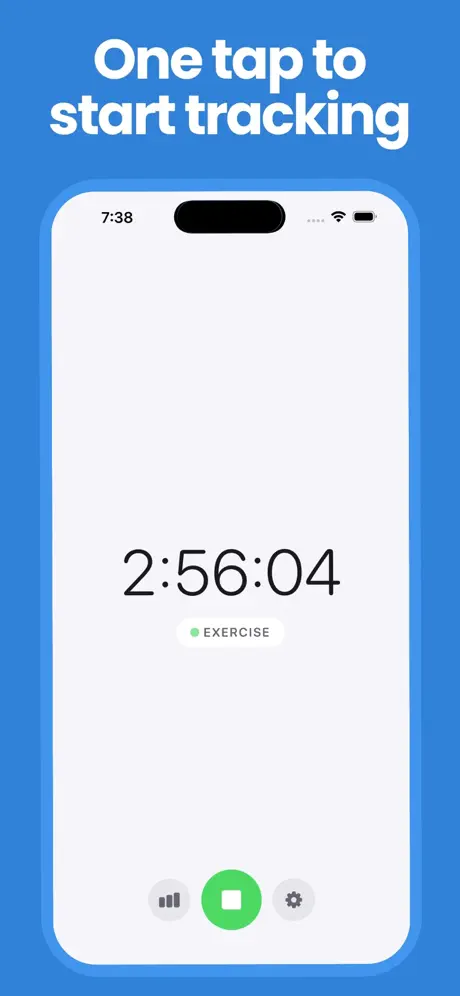
Manually starting and stopping timers is tedious. You forget to log, you lose track of what you worked on, and by Friday you have no idea where your week went.
The good news: your iPhone can do most of the tracking for you. With iOS Shortcuts, Siri, and NFC tags, you can automate time tracking so it runs in the background, and then export everything to Excel when you need a clean report.
This guide walks you through setting it all up using Log Time: Track Daily Activity, a simple time tracker built for speed and automation.
#Why Automate Time Tracking?
Most people abandon time tracking within a week. The reason is always the same: too much friction. You have to remember to start a timer, remember to stop it, and manually categorize every entry.
Research by Harkin et al. (2016) found that self-monitoring is one of the most effective behavior change techniques, but only when monitoring is effortless. The moment it requires conscious effort, compliance drops off fast.
Automation solves this by removing the human step entirely. Your phone starts and stops timers based on triggers you set once.
#Method 1: iOS Shortcuts Automations
iOS Shortcuts lets you create automations that trigger time tracking based on conditions like time of day, location, or app usage.
#Time-Based Automation
Perfect for activities that happen at predictable times, such as work hours, study sessions, or daily routines.
- Open the Shortcuts app
- Tap the Automation tab
- Tap + New Automation
- Select Time of Day
- Set your start time (e.g., 9:00 AM for work)
- Tap Next
- Search for Log Time and select the "Start Timer" action
- Choose your activity (e.g., "Deep Work")
- Toggle off "Ask Before Running"
- Tap Done
Create a second automation at your end time (e.g., 5:00 PM) using the "Stop Timer" action to automatically close out the session.
#Location-Based Automation
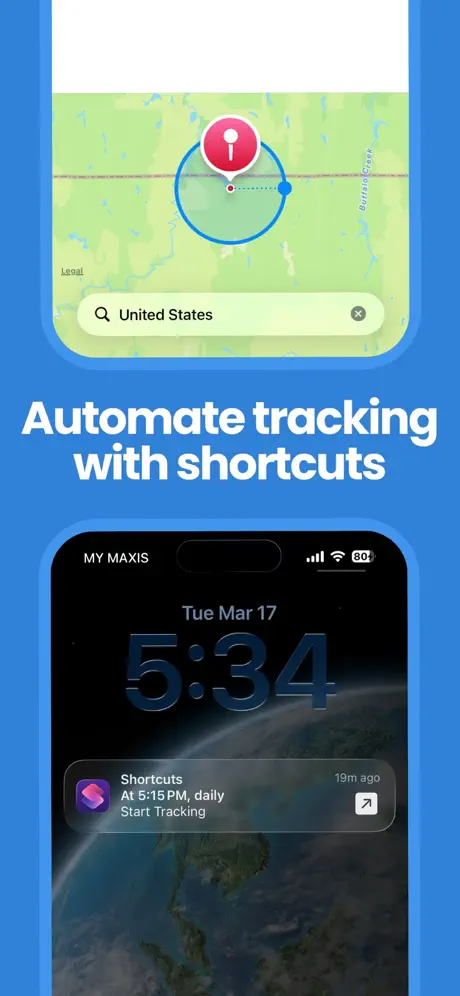
Automatically log time when you arrive at or leave a location, no tapping required.
| Trigger | Activity | Action |
|---|---|---|
| Arrive at office | Work | Start Timer |
| Leave office | Work | Stop Timer |
| Arrive at gym | Exercise | Start Timer |
| Leave gym | Exercise | Stop Timer |
| Arrive at library | Study | Start Timer |
| Leave library | Study | Stop Timer |
Setup:
- Create a new automation → Select Arrive or Leave
- Search for your location (office, gym, cafe, etc.)
- Set the geofence radius (default works for most places)
- Add the Log Time "Start Timer" or "Stop Timer" action
- Select your activity category
- Enable Run Immediately
Your phone uses Apple's built-in geofencing, which is battery-efficient and doesn't continuously poll GPS.
#App-Based Automation
Track time automatically based on which apps you use:
- Open Figma → Start "Design" timer
- Open Xcode → Start "Development" timer
- Open Notes → Start "Writing" timer
- Close the app → Stop the timer
This is especially useful for freelancers and remote workers who need to track time spent on different types of work.
#Method 2: Siri Voice Commands
When you can't automate, voice is the next fastest option. With Siri integration, you can start and stop timers without touching your phone.
Examples:
- "Hey Siri, start tracking Deep Work"
- "Hey Siri, stop my timer"
- "Hey Siri, log 30 minutes of reading"
This works well for activities that don't have predictable triggers, like ad-hoc meetings, phone calls, or creative work that starts spontaneously.
#Setting Up Siri Shortcuts
- Open Log Time and go to Settings
- Find the Siri & Shortcuts section
- Add voice phrases for your most common activities
- Keep phrases short and natural; you'll use them more if they're easy to say
Pro tip: If you wear AirPods or Apple Watch, you can trigger Siri hands-free. Say your phrase while cooking, driving, or walking between meetings.
#Method 3: NFC Tags
NFC tags are small, cheap stickers you can place anywhere. Tap your iPhone on the tag and your timer starts or stops instantly, with no unlocking, no app opening, no screens.
#Where to Place NFC Tags
| Location | Activity | What Happens on Tap |
|---|---|---|
| Desk | Deep Work | Start work timer |
| Gym entrance | Exercise | Start workout timer |
| Piano/instrument | Practice | Start practice timer |
| Kitchen | Cooking | Start cooking timer |
| Bedside table | Sleep | Stop all timers |
#How to Set It Up
- Buy NFC tags (available for under $1 each online; search "NFC 215 tags")
- Open the Shortcuts app
- Create a new Automation → Select NFC
- Tap Scan and hold your iPhone near the NFC tag
- Name the tag (e.g., "Desk")
- Add the Log Time "Start Timer" action
- Select your activity
- Enable Run Immediately
The beauty of NFC is that it's physical and tangible. You tap a sticker when you sit down to work and tap again when you stand up. There's something satisfying about a physical action that makes tracking feel effortless.
#Method 4: Home Screen & Lock Screen Widgets
For the moments when you do track manually, widgets make it as fast as possible.
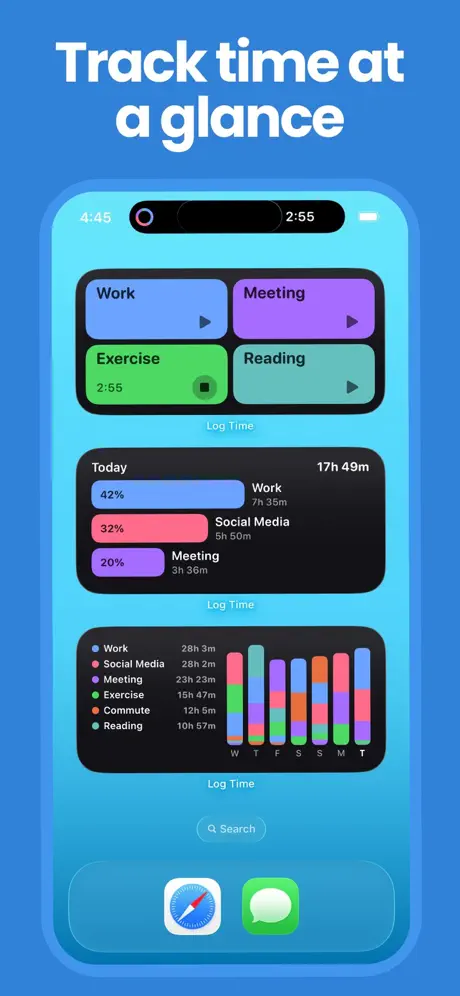
Log Time offers widgets that let you:
- Start and stop timers with one tap from the home screen
- See your running timer at a glance
- View today's time breakdown without opening the app
Add a small widget to your home screen for your most common activity. One tap starts the timer. One tap stops it. That's it.
#Exporting Your Time Data to Excel
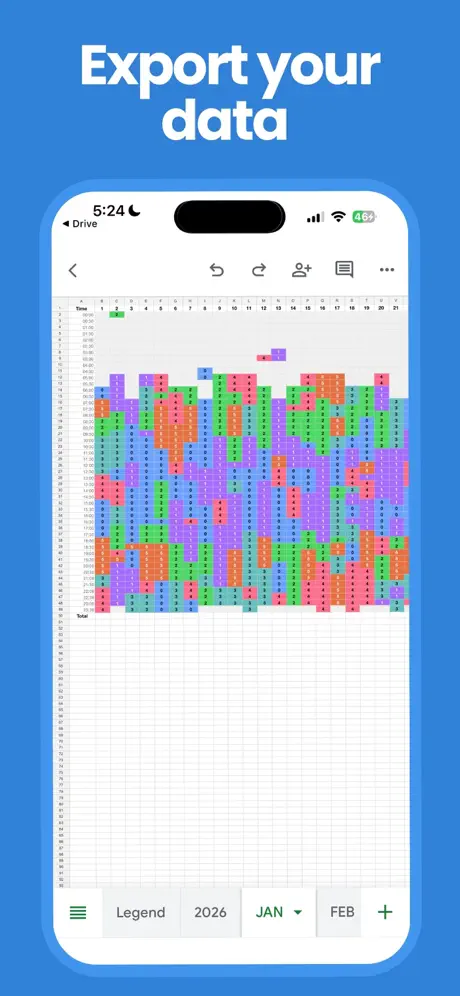
Once your time is tracked, whether automatically or manually, you can export everything to a spreadsheet for reporting, invoicing, or analysis.
#How to Export
- Open Log Time
- Go to the analytics or history section
- Tap Export
- Choose your date range
- Select CSV or Excel format
- Share via email, AirDrop, or save to Files
#What You Get
Your export includes:
- Activity name: What you tracked
- Start time & end time: When each session began and ended
- Duration: Total time per session
- Date: For filtering and pivoting in Excel
#What You Can Do with the Data
- Weekly time reports: See exactly how many hours went to each activity
- Client invoicing: Export billable hours with timestamps
- Productivity analysis: Compare deep work vs. shallow work over time
- Manager updates: Share clean spreadsheets instead of vague estimates
If you use Google Sheets, the CSV import works directly. For Excel, open the file and use pivot tables to slice by activity, day, or week.
#See Where Your Time Goes
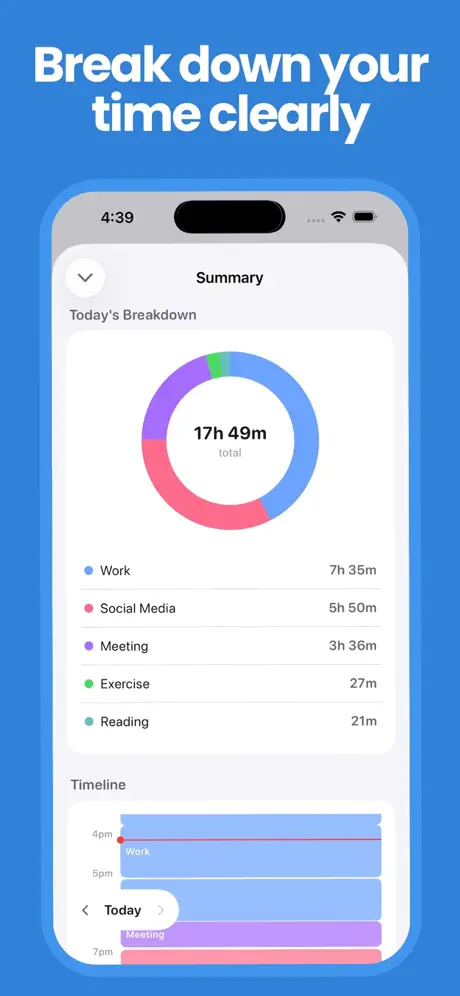
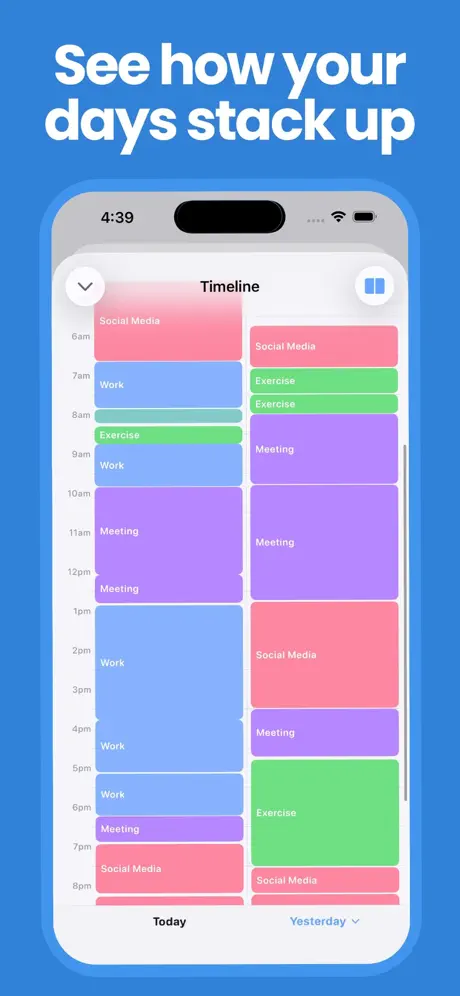
Before exporting, Log Time gives you a visual breakdown of your day. The summary view shows a donut chart with time spent per activity, and the timeline view lays out your entire day so you can spot patterns at a glance.
#Combining All Methods
The most effective setup uses multiple methods together. Here's an example workflow:
Morning:
- Wake up → Time-based automation starts "Morning Routine" timer
- Arrive at office → Location automation starts "Work" timer
During the day:
- Tap NFC tag on desk → Switch to "Deep Work"
- "Hey Siri, start tracking meeting" → Quick switch for ad-hoc meetings
- Widget tap → Start "Break" timer
Evening:
- Leave office → Location automation stops work timer
- Tap bedside NFC tag → Stop all timers
Friday:
- Export the week's data to Excel
- Review your time breakdown
- Adjust next week's schedule based on real data
#Getting Started
The easiest way to start is with one automation. Pick your most predictable daily activity and automate it:
- Download Log Time, free to start, available on iPhone, iPad, Mac, and Apple Vision
- Create one activity. Start simple: "Work", "Study", or "Exercise"
- Set up one automation. A time-based trigger is the most reliable starting point
- Let it run for a week. Check your data at the end of the week
- Add more automations. Layer on location triggers, NFC tags, and Siri commands as you get comfortable
Within a month, you'll have a complete picture of where your time goes, with almost zero manual effort.
Already tracking habits? Daily: Habit & Routine Tracker pairs perfectly with Log Time. Use Daily to build habits and Log Time to track how long you spend on each one.
#Troubleshooting
| Problem | Fix |
|---|---|
| Automation not triggering | Disable "Ask Before Running" in automation settings |
| Location trigger delayed | Increase geofence radius; ensure Location Services is set to "Always" |
| Siri doesn't recognize command | Re-record the Siri Shortcut phrase; keep it short |
| NFC tag not scanning | Ensure iPhone is held near the top (where the NFC reader is) |
| Export file is empty | Check that your date range includes tracked sessions |
| Timer running in background | Log Time continues tracking even when the app is closed |
#References
- Harkin, B., Webb, T. L., Chang, B. P. I., et al. (2016). Does monitoring goal progress promote goal attainment? A meta-analysis of the experimental evidence. Psychological Bulletin, 142(2), 198–229.
- Apple Shortcuts User Guide. Official documentation for iOS Shortcuts.
- iOS Geofencing and Location Services, Apple Developer. Technical documentation on location-based triggers.